AI-Generated Backgrounds
Realistic scenes generated by AI to match your subject.
Home / Utilities / Generate Background
// UTILITIES · TRY FREE · NO CARD
Replace transparent backgrounds with AI-generated scenes.
Replace the transparent background of a PNG with an AI-generated scene. Choose from multiple scene types for realistic background integration.
Free to try. No credit card required for any tool.
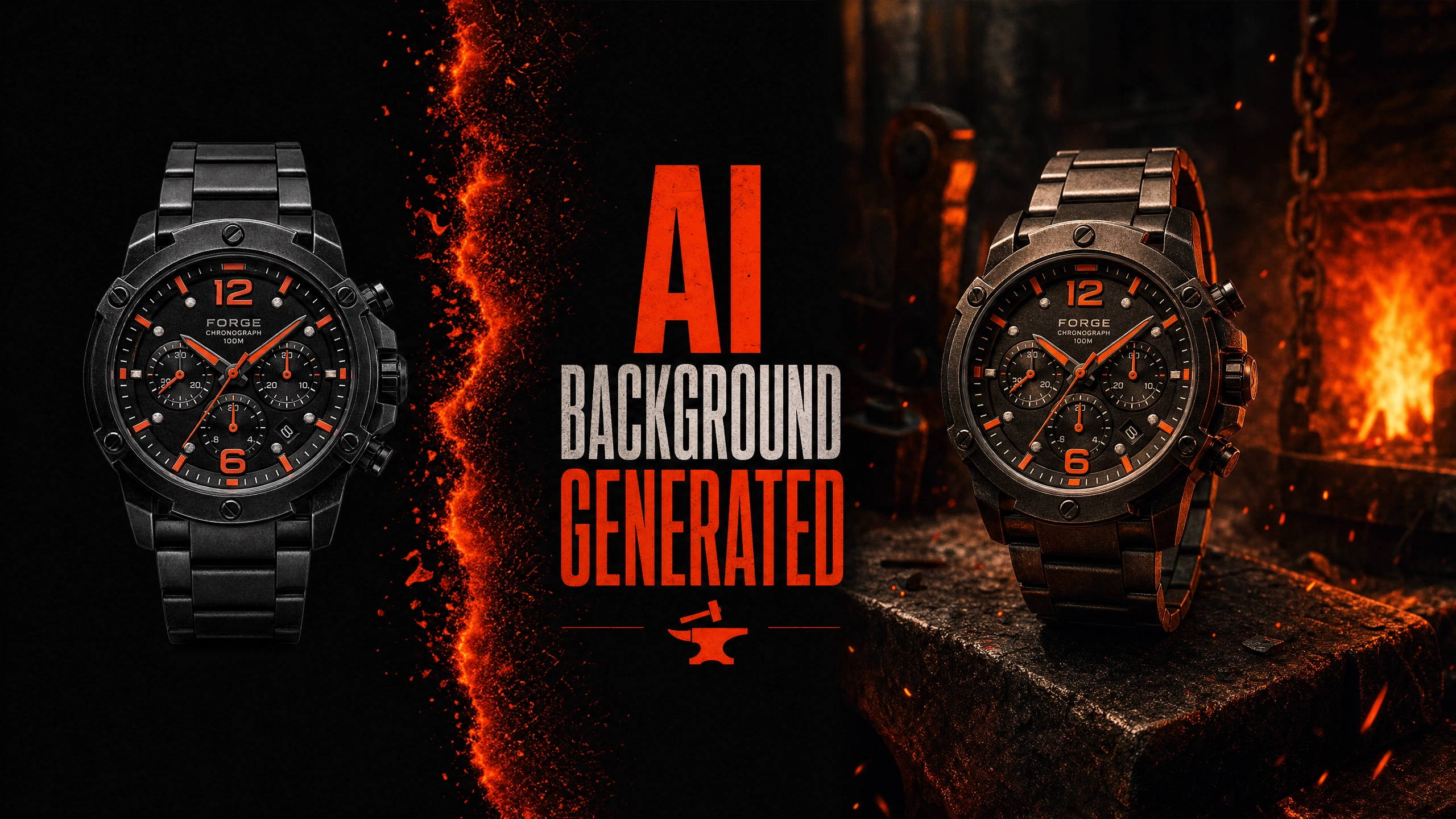
Phlegethon's Generate Background tool takes a transparent PNG (created with Background Removal) and replaces the background with an AI-generated scene. The AI generates a realistic background that matches the lighting and perspective of the subject, creating a seamless composite. Choose from indoor, outdoor, studio, and other scene types. Requires a transparent PNG as input — use Background Removal first.
Realistic scenes generated by AI to match your subject.
Indoor, outdoor, studio, nature, urban, and more.
Background lighting and perspective match the subject.
AI matches the background lighting to the subject's light source.
No visible edge artifacts between subject and background.
Optimized for the Phlegethon bypass pipeline.
Place subjects in any location without a photoshoot.
Create diverse background variations for your content library.
Place products in lifestyle settings for commercial use.
Composite subjects into AI-generated environments.
Generate Background requires a transparent PNG. Use Background Removal on your image first.
Upload your transparent PNG (from Background Removal).
Select from available background scene types.
The AI generates your background in ~20 seconds. Download and forge.
| Feature | Phlegethon | Midjourney |
|---|---|---|
| Subject preservation | Original subject unchanged | Subject may be altered |
| Lighting match | Automatic subject-aware matching | Manual prompt engineering required |
| NSFW content | Yes — no restrictions | Content filters apply |
| Bypass-ready output | Yes — forge pipeline integrated | No bypass capability |
| Workflow integration | Direct pipeline from Background Removal | Separate tool, manual workflow |
| Cost | free to try (~) | Midjourney subscription required |
Try free — no credit card required. Uncensored where the product allows. 18+ only.
Start Free →